
Teach with marimo
The marimo team supports educators trying marimo. Reach out for help with course design, molab best practices, classroom deployment, or anything else.
marimo is an open-source reactive Python notebook: run a cell or scrub a slider and marimo automatically updates affected outputs, bringing code and data to life in an intuitive programming environment.
marimo was originally designed by scientists who needed a single programming environment for conducting reproducible computational science and communicating it as interactive web-based learning experiences.
Today, marimo is used in classes across the world, has been downloaded millions of times, and runs everywhere: locally, in VS Code, in the cloud, and even inside web pages like this one. Try marimo below, or see our guidelines for educators and FAQ!
Features
- Reactivity gives immediate feedback. marimo notebooks execute reactively, keeping code and outputs in sync so students get immediate feedback as they experiment with data and models.
- Interactivity with sliders, text inputs, and more. marimo notebooks come packaged with UI elements automatically bound to Python code — scrub a slider and see affected cells update instantly.
- Custom widgets with AnyWidget. Extend marimo with custom widgets using a little JavaScript, or use third-party widgets from the AnyWidget ecosystem such as the wigglystuff project.
- Reproducible science. Unlike Jupyter, marimo notebooks are designed to be reproducible: no hidden state, and a built-in package manager that records dependencies automatically.
- Simplified package installation. marimo's package manager lets students install new packages with a single click — no terminal required.
- Easy to share on the web. Export to ipynb, PDF, or HTML, embed in web pages, or link to notebooks hosted on GitHub.
- Software engineering best practices. marimo notebooks are stored as pure Python, version-controllable with Git, testable with PyTest, and encourage functional-style programming — setting students up for careers in industry or academia. See our best practices guide.
Getting started
- Run locally. marimo is free and open source; use the command-line interface or VS Code.
- Run on the cloud. Use molab, our free cloud-hosted notebook; no setup required.
- Primer for education. See our self-contained primer on marimo for educators and students.
- Classes using marimo. See this list.
- Examples. See our notebook gallery.
- Documentation. See our online documentation.
- Videos. Our YouTube has many tutorials.
- Forum. Join our discussion forum to chat with the marimo team and other educators.
- Feature requests or issues. Reach out on GitHub with feature requests or issues.
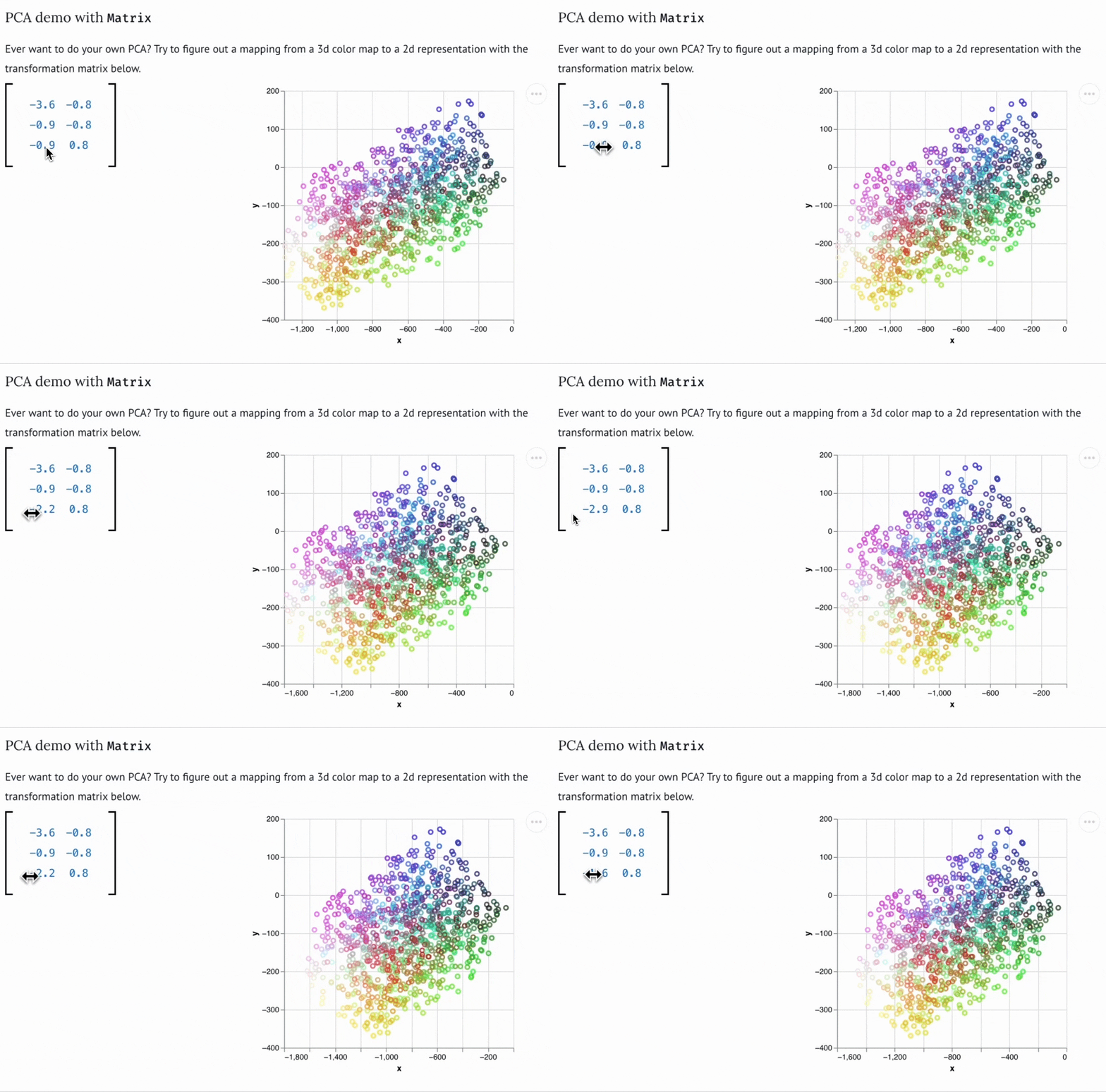
AI as a teaching assistant
- The marimo editor includes a built-in AI chat assistant that understands the variables, data, and code in your notebook. Ask it to generate a new cell, refactor an explanation, or build a visualization, and it works with what's already on the page.
- For deeper collaboration, you can use agents like Claude Code and Codex directly in your workflow, and use
marimo-pairalongside marimo's curated collection of Skills to generate notebooks or scaffold lessons.marimo-pairdrops an LLM directly into a running notebook session; the agent can add, remove, and run cells, read program memory, and install packages, all within the notebook environment. You can intervene at any point or let it run autonomously; because marimo notebooks are reactive Python, you can always see, edit, audit, and understand what the AI produces. - With AnyWidget support you (or an AI agent) can quickly create custom interactive widgets: a draggable parameter explorer, a live signal decomposition, or step-by-step explanation of a proof. This makes learners demonstrate understanding by doing, not just answering. Because AI has dramatically lowered the cost of building this kind of content, you can customize lessons rather than relying on pre-made materials that may not fit your students.
FAQ
Do my students need to install anything to use marimo?
No. Students can use molab, marimo's free cloud-hosted notebook service, directly in a web browser without installing Python or any packages. If students want to run notebooks locally, they can install marimo with pip install marimo or uvx marimo and use its browser-based editor.
How do I share a notebook assignment with students?
The easiest approach is to store the notebook on GitHub and share a molab preview link of the form https://molab.marimo.io/github/<owner>/<repo>/blob/main/<notebook>.py. This URL stays up to date as the notebook changes on GitHub. Students can fork the notebook into their own molab workspace from the preview page.
How do students submit completed notebooks?
Students can download their completed notebook from molab as a .py file, a .ipynb file, or a PDF that can be uploaded to tools like Gradescope.
What is reactive execution and why does it matter in a classroom?
In older notebooks like Jupyter, students can run cells out of order and accumulate hidden state, producing outputs that are inconsistent with the code on screen. In contrast, marimo keeps track of which cells depend on which, so that if a student changes values in one cell, the notebook re-runs others that use them. As a result, students spend less time debugging stale state and more time learning.
Can I convert my existing Jupyter notebooks to marimo?
Yes. Run uvx marimo convert my_notebook.ipynb -o my_notebook.py to convert a Jupyter notebook to a marimo notebook. Not every notebook converts perfectly out of the box: notebooks that depend on cell execution order will need minor restructuring, but marimo will flag the issues so you know exactly what to fix.
marimo imposes a rule that each variable must be defined in only one cell. Will this confuse my students?
It can at first, but it encourages students to write functions and avoid global state, both of which are good software development practices.
How do I add a slider or dropdown to a notebook so students can explore a parameter?
Import marimo with import marimo as mo, then create a UI element and assign it to a variable in one cell:
x = mo.ui.slider(start=0, stop=10, step=0.1, label="x")
x
In any other cell, read x.value. Thanks to reactive execution, every cell that references x re-runs automatically when the student moves the slider, giving immediate visual feedback.
How do I make sure every student has the same packages installed?
Start the notebook with uvx marimo edit --sandbox my_notebook.py. The --sandbox flag records each package and its version as metadata inside the notebook file. When a student opens the notebook, marimo automatically creates an isolated virtual environment containing exactly those packages. Students never need to touch a requirements.txt or pyproject.toml.
Can I embed automated tests in a notebook to give students instant feedback?
Yes. Import pytest at the top of the notebook; any cell containing only functions whose names start with test_ will be picked up and run by pytest automatically. Place a stub function in one cell and the corresponding tests in another. When the student updates their implementation and runs the cell, the test cell re-runs immediately and reports pass/fail in the notebook output, guiding them toward a correct solution without giving the answer away.
My existing materials use MathJax. Will my LaTeX render correctly in marimo?
marimo uses KaTeX for rendering math, which is faster than MathJax but supports a smaller set of LaTeX commands. The KaTeX supported functions page lists what is and is not available. See the section below for a migration guide.