

AI and data workflows generate large datasets and model artifacts like weights and checkpoints that quickly exceed molab’s notebook storage limits.
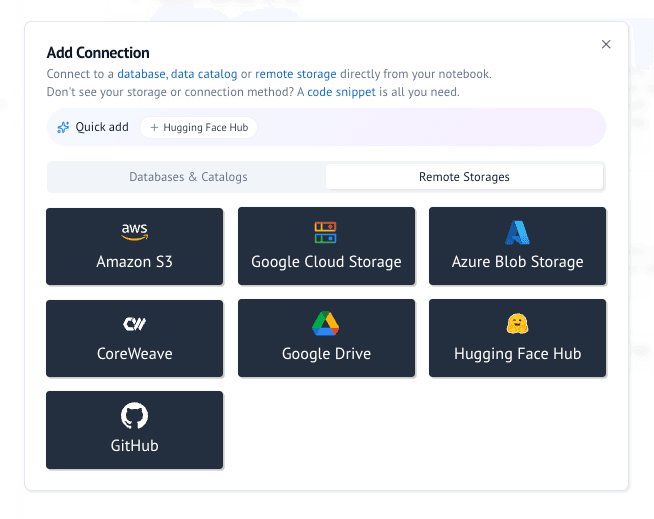
Today we’re excited to introduce remote storage in molab: connect cloud storage providers to your notebooks, browse files directly from the sidebar, and generate code to read or download data, all without leaving the editor. Google Drive, CoreWeave, S3, GCS, Azure Storage, and Hugging Face are supported today.
Update — September 23, 2026: Remote storage now includes Hugging Face and GitHub integrations. We’ve also added example notebooks.
#Getting started
Open the Files sidebar and click Add remote storage. The UI walks you through your connection details and inserts a code snippet for you. There is a ‘Quick add’ section where it auto-detects environment variables to offer you a one-click connection.
Note: When you set up remote storage, connection details are saved in the
.envfile. In molab, protected files like.envare not included when someone forks your notebook, so credentials stay private.
For Google Drive, the generated code looks like this
from gdrive_fsspec import GoogleDriveFileSystem

fs = GoogleDriveFileSystem(use_listings_cache=False, skip_instance_cache=True)
Run the cell and the Remote Storage explorer populates in the sidebar. The first time you connect, a browser window opens to complete OAuth. Your token is cached locally so subsequent sessions reconnect automatically.
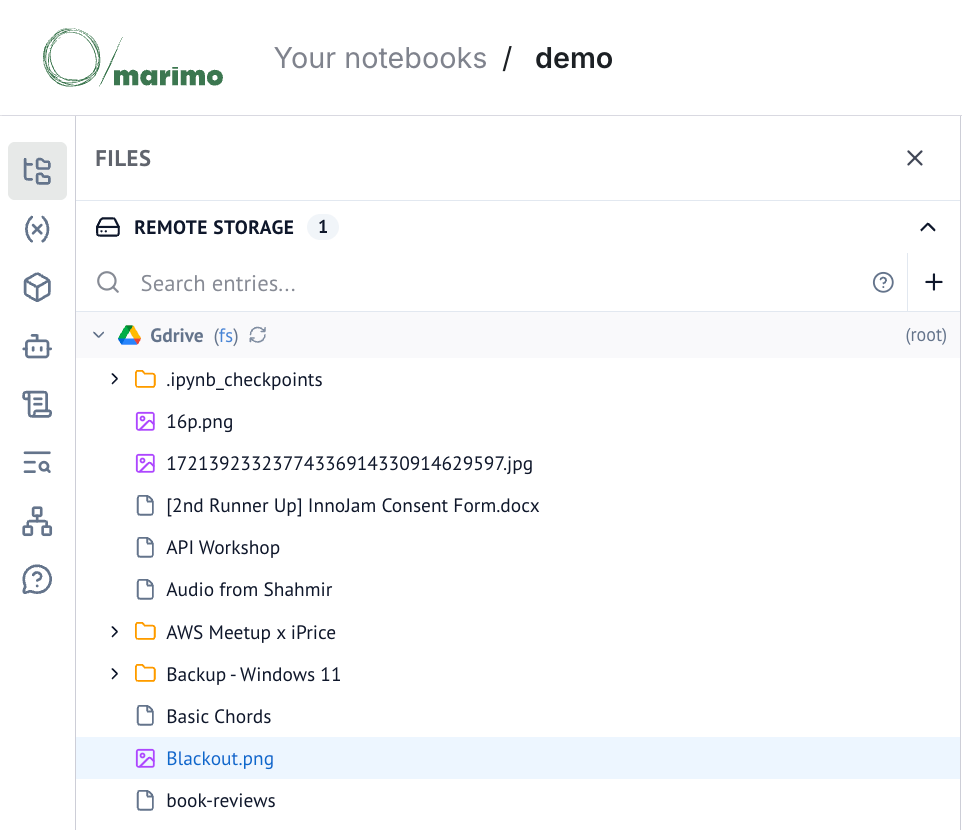
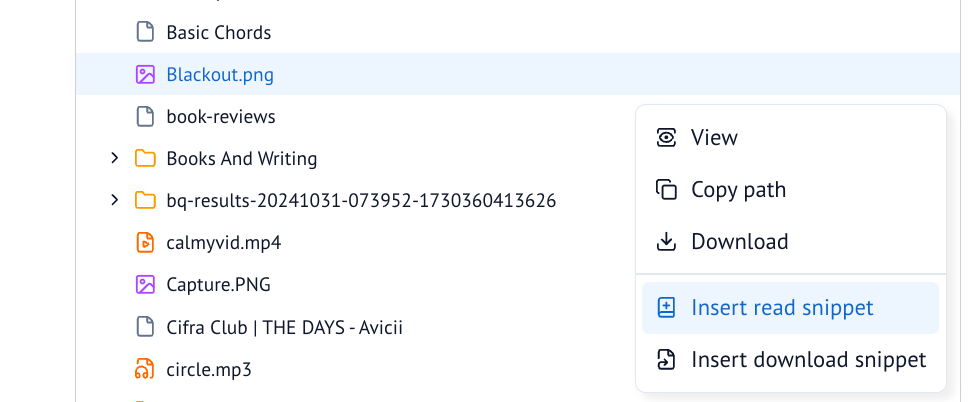
From there you can search entries, download files, and insert code snippets to read data into your notebook.
#Example notebooks
Explore common remote storage workflows in these molab notebooks:
#How it works
We wanted a single integration layer that new storage providers could plug into without rewriting the UI or sidebar. marimo automatically detects obstore and fsspec connections in your notebook and surfaces them in the Files panel.
| Library | Base class | Example stores |
|---|---|---|
| obstore | obstore.store.ObjectStore | S3, GCS, CAIOS, Azure Blob, and other Cloud Storage providers |
| fsspec | fsspec.AbstractFileSystem | Google Drive, GitHub, FTP, and many more |
We evaluated several options — including Apache Arrow, cloudpathlib, and native SDKs like boto3 and the Azure SDK. We settled on fsspec and obstore for three reasons:
- Unified interface. One API for reading and writing across providers. With
fsspec, it’s a familiar POSIX-style filesystem; withobstore, it’s a consistent object-store interface. - Performance. Obstore is a Python interface backed by Rust. The obstore docs go into detail about the performance benefits.
- Active ecosystem. Both libraries are actively maintained and used by large projects such as Polars and pandas.
#Google Drive
If you’ve used Colab, you’ve probably mounted Google Drive to a local path:
from google.colab import drive
drive.mount("/content/drive")
That API is familiar, but it has limitations for a general-purpose notebook platform:
- Not portable. Mount paths and auth flows are Colab-specific; the same code won’t run elsewhere.
- Expensive auth integration. Mounting requires tight OAuth integration with Google, which is difficult and costly for non-Google notebook providers.
Instead, we use gdrive-fsspec, which wraps Google’s Python client libraries behind the standard fsspec interface.
The tradeoff is a few more lines of code; for Colab-style Drive recipes adapted to this model, see this molab notebook.
We maintain a fork of the upstream library with fixes for functionality we needed in production, and we’re upstreaming those changes.